Motions are where a committee decides what to do next, and voting is where it decides what it believes. Both are easy to get wrong from the dais: three motions raised at once, a vote order nobody remembers, a delegation that passed and was never asked again, a P5 member whose Against was counted as an ordinary no.
This guide shows how Gavelling handles each step: raising and ranking motions, suspending and ending debate, submitting and introducing working papers and draft resolutions, and running the vote itself. For the rules behind them, keep MUN motions explained and MUN voting procedures open alongside.
1. Raise Motions on the Floor#
Delegates raise motions out loud, as they always have, and the chair records them. Open Motions in the top bar and press Raise motion. Pick the type, type the proposing delegation in the proposer field (or raise it as the chair), and fill in what the motion needs: a topic for a moderated caucus, the total time, the speaking time, or the speaking order for a Tour de Table.
A few rules keep the floor tidy:
- One motion per delegation. A delegation that already has a motion on the floor cannot raise a second one until the first is dealt with.
- Up to fifteen on the floor. At fifteen, the floor is full: vote on one or remove one before raising another. None of them is ever hidden; the extra ones scroll.
- Quorum first. Below quorum, motions cannot be raised at all.
Every motion card shows the same things in the same places: the motion's name, its topic, who raised it, and its times. A wrong time or topic is fixed with Edit rather than by deleting and raising it again.
2. Vote on Motions in the Right Order#
The floor is ranked for you, most disruptive first, and each card carries its badge: ends the session, suspends the session, most disruptive, very disruptive, disruptive, least disruptive. That is the order most rules of procedure vote in, so you can read it straight off the screen.
"The chair has three motions on the floor. We will vote in order of disruptiveness, starting with the motion for an unmoderated caucus of fifteen minutes."
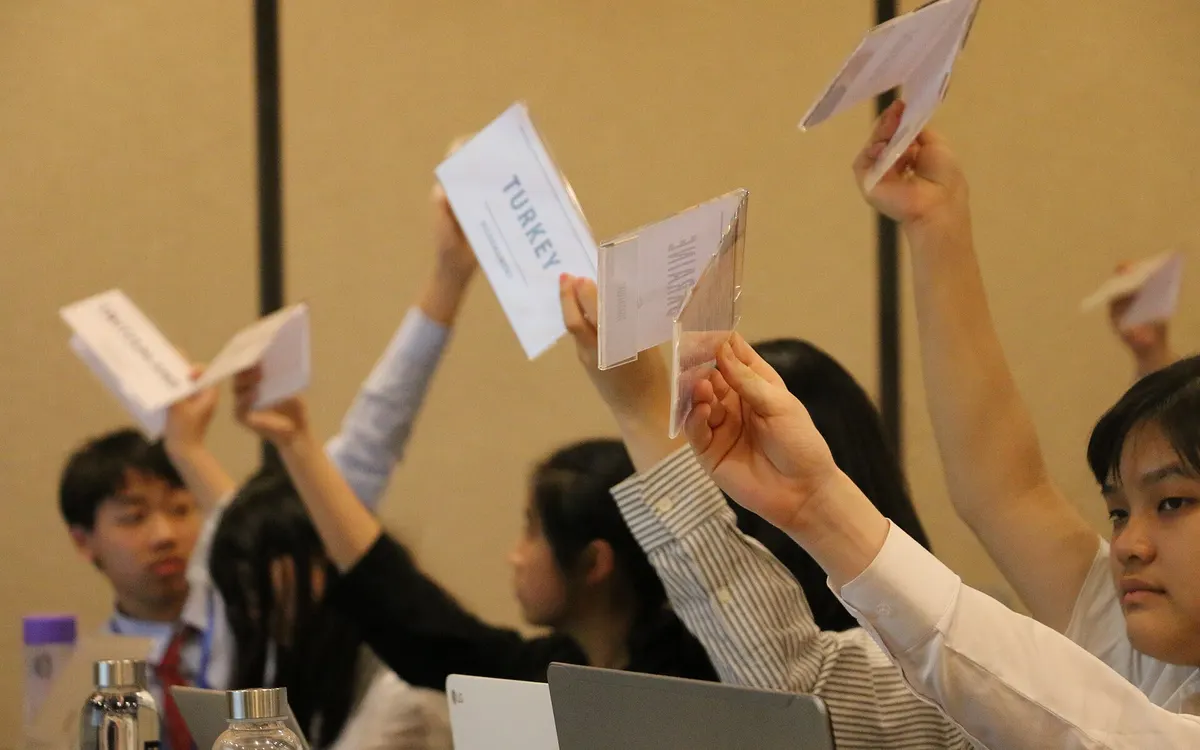
If your rules order things differently, press Vote on motions and drag the motions into the order you want. Each one shows the majority it needs and how many votes that is out of the delegations present. After the show of placards, press Accept or Reject.
When a motion passes, the other motions on the floor fall, as they would in most committees, and a short card says how many fell. After a caucus is accepted that card offers Undofor a few seconds, in case you accepted the wrong one. Every motion, passed, rejected or fallen, goes into the committee's history, and raising or passing one earns points on the scoreboard.
Fifteen motions on the floor at once, ranked, edited, dragged into a new order and accepted.
Make the motions match your rules
Not every conference uses the same motions or calls them the same thing. In Settings, on the Motions tab, the Moderator can switch motions on and off, change their order of disruptiveness and rename them, so a "Consultation of the Whole" or a "Moderated Caucus" is shown under the name your rules use, everywhere in the room.
Choose what delegates can do, set the timer sound, reorder and rename motions, and set your own points.
3. Suspend or End Debate#
A motion to suspend or end debate asks one question before anything happens: Does this motion pass? Press Yes only when the committee has voted it through.
- Suspend pauses the room for a break. The current speech is recorded, the clocks stop and delegates see a waiting screen. When the committee returns, a chair presses Resume session and takes a quick roll call; the speakers list, chat and documents are all still there, and a speaker on the general speakers list who was interrupted gets the rest of their time back.
- End Debate closes the session. Everyone sees the end screen, the room becomes read only, and the chair can download the record. An end can be undone for 24 hours with Restart the session.
4. Submit Working Papers and Draft Resolutions#
Open Documents in the top bar. There are two tabs, Working Papers and Draft Resolutions (your committee can rename both in Settings). A paper is submitted by a delegate from their phone or by a chair from the laptop, with:
- a title,
- an optional Google Docs link,
- a PDF, if there is one,
- and the sponsoring delegations.
The paper gets its code from the session, WP 1.1 or DR 1/1 and so on, so two papers never share a number. If your committee wants to vet papers first, turn on approval in Settings and each paper waits for Approve before it can be introduced. You can also cap how many working papers and draft resolutions the committee accepts. Our working paper guide covers what should be in one.
5. Introduce a Paper With the Timer Beside It#
Press Introduceon a paper. The first screen is the order of proceedings: minutes for Reading, Presentation and Q&A, each set with one minute more or one minute less, and the floor time it adds up to. Press Begin the introduction, or Skip the timers if the committee does not time introductions.
The paper then opens full screen with the stage timer floating over it. Delegates read while the reading clock runs, the sponsors present, the committee asks questions. You can page through the PDF, zoom, move or resize the timer, hide it, and add time to a stage. Finish ends the introduction: a working paper passes at that point, and a draft resolution stays introduced, ready for its vote.
A draft resolution submitted with its sponsors and PDF, then introduced with the document and the timer on one screen.
6. Run the Vote on a Draft Resolution#
On an introduced draft resolution, the Moderator presses Vote, which opens the voting screen. Every new vote starts with a roll call, so the count is taken against the room as it is now, not as it was this morning. Observers are in the room but out of the ballot.
Then choose how delegations vote: by roll call, with the chair calling each one in turn, or on their own devices. The choices are:
| Choice | What it means |
|---|---|
| For | In favour of the resolution |
| For with Rights | In favour, and the delegation explains its vote afterwards |
| Abstain | Not available to a delegation that declared Present and voting |
| Pass | Asked again at the end, and must then vote For or Against |
| Against with Rights | Against, with an explanation afterwards |
| Against | Against the resolution |
Rights and Pass can be switched off in Settings if your rules do not use them. In a roll call vote the screen moves along the line one delegation at a time, and Back steps back if someone misspoke. Once everyone has voted, the delegations that voted with rights speak, each with the same speaking time, in an order you can drag to change. Then the result goes up.
With device voting, each delegation votes on its own phone. The chair sees how many have voted, never how, until everyone has voted or the chair presses Reveal vote.
7. The P5 Veto and the Result#
The threshold, how abstentions count and the veto rule sit as bookmarks on the voting screen. With the veto on, the five permanent members, or a list of delegations you choose, are marked as holding a veto. When one of them votes Against, Gavelling stops and asks: This is a veto. Record it? Press Record the veto and the resolution fails, whatever the count. There is also a unanimous mode, where every delegation present and voting must vote For.
The result card says Passed, Failed, Vetoed or Unanimous, with the count, and is ready to show the room. The vote is saved as it goes, so a dropped connection or a reload picks up where you left off. When you are done, press Session in the header and the room returns to whatever it was doing before the vote. The Security Council guide covers how the veto shapes the debate before it ever reaches a vote.
What happens on the voting screen when a P5 member votes Against.
New to running a room on Gavelling? Start with setting up a committee, then the speakers list and caucuses, or open a free room and try it.